That insane clutch, the last-second win, the hilarious fail your squad is still laughing about if you didn’t clip it, did it even happen? In 2026, gaming moments move fast, and the right clipping software is the difference between building a highlight reel your friends actually watch and losing everything the second you close the game.
But not all clipping tools are created equal. Some quietly eat your FPS mid-match. Others don’t play nice with your Mac, your AMD card, or your specific game. And with so many options from built-in tools like GeForce Experience and AMD ReLive to dedicated apps like OBS, Outplayed, and Peeps, picking the right one can feel more complicated than it should be.
This guide cuts through the noise. Whether you’re on Windows or Mac, running AMD or Nvidia, chasing clutch plays in Valorant, wild moments in Roblox, or highlight-reel goals in Rocket League, you’ll find exactly which clipping software fits your setup plus how to configure it for smooth, lag-free capture and easy sharing. Let’s get your best moments saved for good.
What Is Clipping Software? (And Why Every Gamer Needs It)
Clipping software is a program that captures short, specific moments from your gameplay, usually just seconds to a few minutes long, without you having to record and edit an entire session. Instead of hitting record before every match and sorting through hours of footage afterward, clipping software works quietly in the background, watching your gameplay and letting you save the good parts the instant they happen. Press a hotkey, or let the software detect a highlight automatically, and the moment is saved as its own file, ready to share.
This is different from how gamers used to handle recording. A few years ago, capturing a highlight meant running a full recording session, storing a massive file, and manually scrubbing through footage to find the thirty seconds worth keeping. Clipping software flips that process. It saves only what matters, which means smaller files, faster sharing, and none of the tedious editing.
Every gamer benefits from having this kind of tool, even casual players who aren’t chasing views or sponsorships. Competitive players use it to review clutch rounds and mistakes. Streamers use it to pull highlight clips for social media without breaking their flow. Friend groups use it to capture funny or chaotic moments they want to relive later. And more casual players simply like having proof of that one incredible play they’ll otherwise just have to describe from memory.
How Clipping Software Works (Background Recording vs Manual Capture)
Most clipping software runs on a rolling buffer system. The program is constantly recording gameplay in the background, but only holding onto the last thirty seconds, five minutes, or whatever window you set, at any given time. Nothing is permanently saved until you tell it to be. When something worth keeping happens, you press a hotkey, and the software takes that buffered footage and saves it as a real file on your system.
Manual capture works differently. Instead of relying on a background buffer, you start and stop recording yourself, similar to hitting record on a camera. This gives you full control over exactly what gets recorded, but it also means you have to anticipate the moment before it happens, which isn’t always realistic in fast-paced games.
Many modern tools blend both approaches, running a background buffer for spontaneous moments while still letting you manually record longer sessions when you want full control. Understanding which mode a tool relies on matters because it affects performance, storage use, and how naturally the software fits into how you actually play.
Clipping Software vs Full Screen Recorders: What’s the Difference?
It’s easy to assume clipping software and screen recorders are the same thing, but they’re built for different goals. A full screen recorder is designed to capture everything, often for tutorials, walkthroughs, or long-form content where the entire session matters. These tools tend to produce large files and require more storage and processing power because they record continuously from start to finish.
Clipping software, on the other hand, is built around brevity and speed. It’s optimized to capture short bursts of footage with minimal system impact, which makes it better suited for gaming specifically, where you care about a handful of standout moments rather than the entire match. The lighter footprint also means clipping tools are generally gentler on your FPS, an important distinction for anyone playing competitively.
If your goal is building a full tutorial or a complete gameplay archive, a screen recorder makes sense. If your goal is capturing highlights without disrupting your performance, clipping software is the better fit, and it’s what the rest of this guide focuses on.
Key Features to Look For in 2026
Not every clipping tool is worth installing, and the differences between them matter more than people expect. A few features consistently separate the tools worth using from the ones that end up uninstalled within a week.
Low performance impact matters most for competitive players, since noticeable FPS drops defeat the purpose of clipping in the first place. Hotkey customization is just as important, because fumbling for a hotkey during a fast moment often means missing the clip entirely. Automatic highlight detection has become common too, with software recognizing kills or wins and saving them without any input from you. Storage and export quality vary between tools, so check for compression that doesn’t ruin your footage. Finally, confirm platform and hardware compatibility, since performance can differ significantly between Windows, Mac, AMD, and Nvidia setups.
Best Clipping Software by Platform
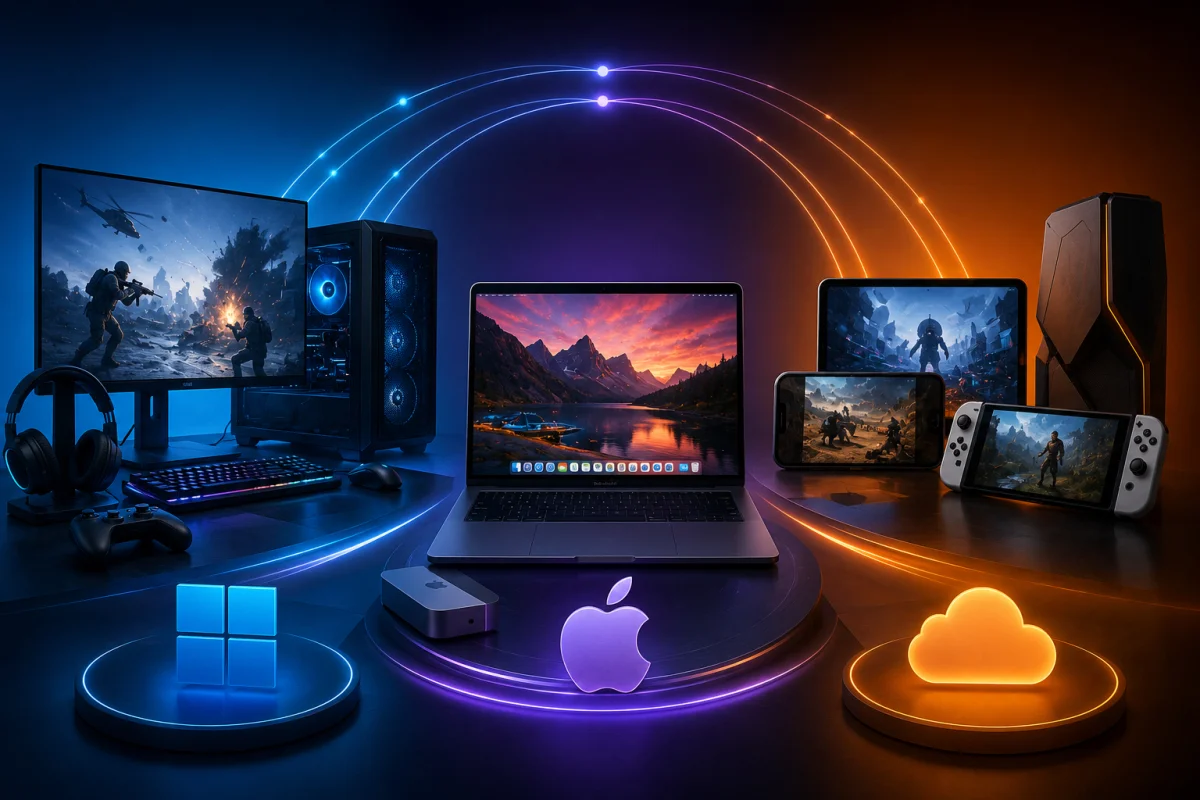
The clipping software that works best for you depends heavily on what system you’re running. Windows and Mac handle background recording differently, and the tools built for one platform don’t always translate well to the other. Picking software that’s genuinely optimized for your operating system saves you from laggy captures, missing features, or clips that never save properly.
Best Clipping Software for Mac
Mac users have historically had fewer clipping options than Windows users, since most gaming capture tools were built with Windows and dedicated GPUs in mind. That’s changed significantly, with several tools now offering solid Mac support, including built-in options like macOS’s native screen recording combined with third-party clipping apps designed specifically for Apple hardware. When choosing clipping software for Mac, prioritize tools that are built for Apple Silicon rather than older Intel-based Macs, since performance and battery impact vary widely between the two. Look for lightweight background recording that won’t strain your system, especially since Macs aren’t typically built with the same cooling and GPU headroom as gaming PCs.
Best Clipping Software for Windows
Windows remains the dominant platform for gaming, and it shows in how many clipping tools are built with Windows first. Options here range from GPU-native software like GeForce Experience and AMD ReLive to third-party tools like OBS, Outplayed, and Peeps. Windows users generally have the most flexibility, with tools offering deeper customization, more hotkey options, and tighter integration with dedicated graphics cards. If you’re on Windows, your biggest decision usually comes down to whether you want a GPU-native tool tied to your hardware or a standalone app that works across different setups.
Cross-Platform Options for Mixed Setups
If you regularly switch between machines, or your friend group plays across both Windows and Mac, cross-platform tools are worth prioritizing. These tools sacrifice some hardware-specific optimization in exchange for consistency, meaning your settings, hotkeys, and clip storage behave the same no matter which system you’re on. This is especially useful for group content, where mismatched clip quality or formats between teammates can make editing a highlight reel together more of a hassle than it needs to be.
Best Clipping Software by GPU (AMD vs Nvidia)
Your graphics card plays a bigger role in clipping performance than most gamers realize. Both AMD and Nvidia offer native clipping tools built directly into their drivers, and these often outperform third-party software since they’re optimized specifically for that hardware. Understanding how each works, and how to troubleshoot common problems, helps you get smoother captures without extra downloads.
AMD Clipping Software: ReLive & Instant Replay Hotkey Setup
AMD’s Radeon Software includes ReLive, a built-in clipping tool designed to run in the background with minimal system impact. ReLive uses an Instant Replay feature, which continuously buffers your gameplay so you can save the last few minutes with a single hotkey press. Setting up the hotkey is straightforward within the Radeon Software settings, and most players customize it to something easy to hit mid-match, since the default combination isn’t always convenient during fast gameplay. ReLive also lets you adjust buffer length and video quality, giving AMD users a solid built-in option before even considering third-party software.
How to Fix Common Nvidia Clipping Issues (GeForce Experience Troubleshooting)
Nvidia users rely on GeForce Experience for native clipping, using its Instant Replay feature in much the same way ReLive works for AMD. When clipping issues come up, they’re usually tied to outdated drivers, background conflicts with other capture software, or Instant Replay simply not being enabled in the in-game overlay settings. Updating GeForce Experience to the latest version resolves most problems, as does restarting the overlay service if clips fail to save. Running two clipping tools at once, such as GeForce Experience alongside OBS, is a common cause of glitches and is worth avoiding.
AMD vs Nvidia Clipping Tools: Which Captures Better Quality?
Both ReLive and GeForce Experience produce reliable, high-quality clips, and the difference between them is smaller than it used to be. Nvidia’s tool has generally had a slight edge in encoding efficiency, which can matter for players running lower-end systems. At the same time, AMD’s ReLive tends to be simpler to configure and lighter on background resources. For most players, the better choice comes down to whichever GPU you already own rather than switching hardware purely for clipping performance.
Clipping Software That Won’t Tank Your FPS
Nothing ruins a competitive match faster than realizing your clipping software is the reason you’re stuttering mid-fight. FPS impact is one of the biggest concerns gamers have when choosing capture software, and rightfully so, since even a small drop in frame rate can be the difference between winning and losing a close round. Understanding how these tools affect performance helps you choose one that captures your best moments without costing you the game.
How Background Capture Impacts Performance
Clipping software runs in the background, constantly buffering footage, which means it’s always using some amount of your system’s resources, even when you’re not actively saving a clip. The exact impact depends on how the software processes that footage. Tools relying on software encoding use your CPU to compress video, which can compete directly with the resources your game needs, especially in CPU-intensive titles. This is why some clipping tools feel nearly invisible while others cause noticeable stutter, even on capable systems. The buffer length you set also matters, since a longer buffer window means more footage being processed and held in memory at all times.
Low-Impact Settings for Competitive Gaming
If frame rate is a priority, a few adjustments make a real difference. Lowering your buffer length reduces how much footage is being processed at once, easing the load on your system. Reducing recording resolution and bitrate also helps, since 1080p captures put far less strain on your hardware than 4K, without sacrificing enough quality to matter for a quick clip, and closing unnecessary background applications. At the same time, gaming frees up additional resources for both your game and your clipping software to run smoothly together. Most native tools, like ReLive and GeForce Experience, also include a performance or balanced mode specifically designed to minimize FPS impact during actual gameplay.
Hardware vs Software Encoding Explained
This is the single biggest factor separating clipping tools that hurt your FPS from ones that don’t. Software encoding uses your CPU to compress and process video, which competes with the same resources your game relies on. Hardware encoding, by contrast, uses a dedicated chip built into modern GPUs, meaning the encoding work happens separately from your CPU and GPU rendering load. This is why GPU-native tools like ReLive and GeForce Experience tend to have such a light footprint, since they’re built to take advantage of hardware encoding by default. When choosing third-party software, checking whether it supports hardware encoding and enabling it if it does is one of the easiest ways to protect your frame rate.
Auto-Clipping Software Never Miss a Highlight Again
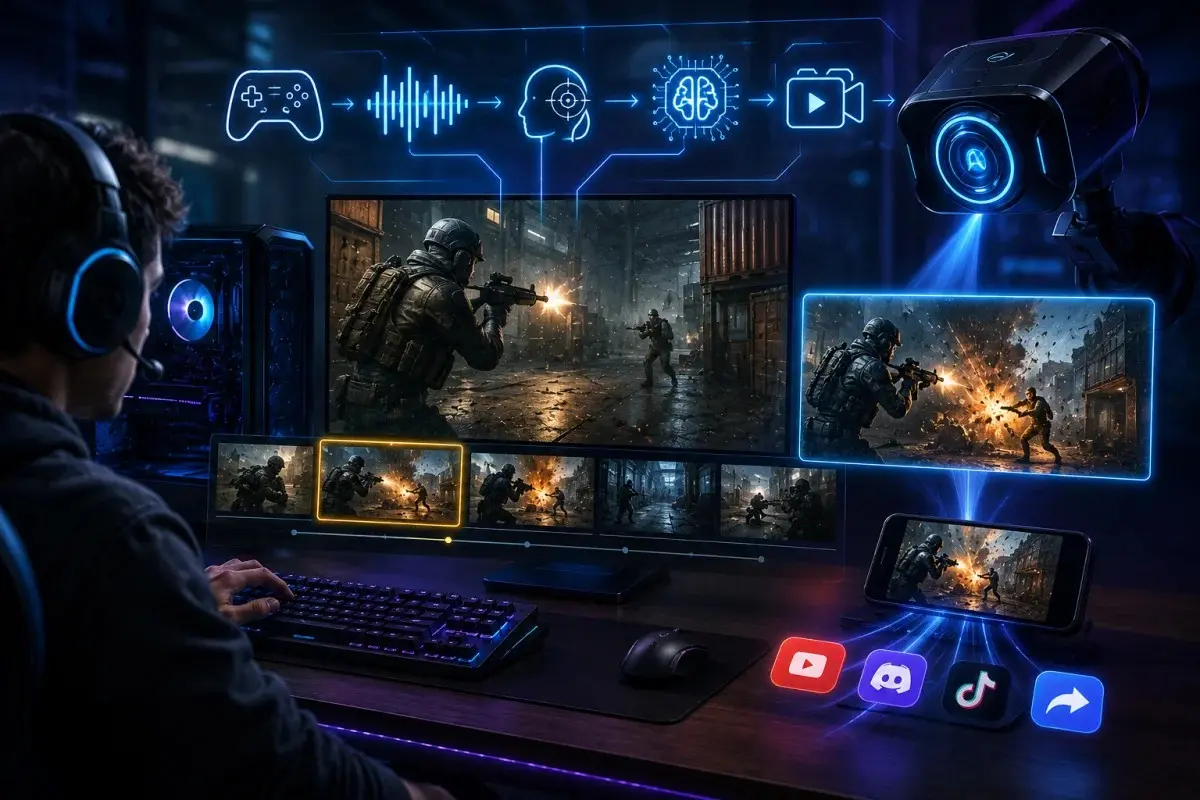
Some of the best gaming moments happen too fast to react to. By the time you process what just occurred and reach for a hotkey, the clip-worthy moment is already gone. Auto-clipping software solves this by removing the need to catch anything manually, instead detecting highlight-worthy moments on its own and saving them automatically while you focus on playing.
How Auto-Detection Works (Kill Triggers, Highlight Detection)
Auto-clipping tools monitor gameplay for specific triggers rather than requiring manual input. In shooters, this often means detecting kills, eliminations, or match wins through in-game audio cues, on-screen notifications, or direct game integration. Some tools go further, using AI-based analysis to recognize spikes in intensity, like rapid camera movement or sudden changes in gameplay pace, and flag those moments as likely highlights even without a clear trigger like a kill notification. Once a moment is detected, the software automatically saves that segment from its background buffer, no different from a manual clip, just without you having to press anything.
Best Auto Clip Tools for Fast-Paced Games
Auto-clipping is especially valuable in games where reaction time makes manual clipping unreliable. Fast-paced shooters and battle royales benefit the most, since triggers like kills or wins are clearly defined and easy for software to detect accurately. Tools built specifically around auto-detection tend to outperform GPU-native software here, since native tools generally focus on manual hotkey capture rather than automated recognition. For players who want a highlight reel without the mental overhead of remembering to clip anything, prioritizing software with strong auto-detection is worth it, even if it means sacrificing some of the deeper manual customization found in tools like OBS.
Best Clipping Software by Game
Different games create different clipping needs. A slower-paced game gives you time to manually hit a hotkey, while a fast, chaotic match might only be captured reliably through auto-detection. Matching your clipping software to the specific games you play most often leads to fewer missed moments and less frustration.
Best Clipping Software for Roblox
Roblox presents a unique challenge for clipping software, since it’s less resource-intensive than most competitive titles but spans an enormous variety of game modes, each with different pacing and highlight-worthy moments. Because Roblox doesn’t have the standardized kill or win triggers that shooters do, auto-detection tools are less reliable here, making hotkey-based clipping software the more practical choice. Lightweight tools work particularly well, since Roblox itself doesn’t demand heavy system resources, meaning even lower-end setups can run smooth background buffering without noticeable slowdown.
Best Clipping Software for Valorant
Valorant’s fast, precise gunplay means clip-worthy moments often last just a second or two, making both quick hotkey access and reliable auto-detection valuable. Since Valorant has clear kill and round-win triggers, auto-clipping tools tend to perform especially well here, catching clutch rounds and multi-kills without requiring split-second reactions from the player. Low-impact, hardware-encoded clipping software is particularly important for Valorant, given how competitive and performance-sensitive the game is; even a small FPS dip can affect aim and reaction time.
Best Clipping Software for Rocket League
Rocket League’s highlight moments, like last-second saves or overtime goals, tend to happen in short, explosive bursts that are easy to miss if you’re relying purely on manual hotkeys. A buffer-based clipping tool with a slightly longer buffer window works well here, since it gives you room to capture the moments leading up to a goal, not just the goal itself. Because Rocket League isn’t especially GPU-intensive, most clipping software runs smoothly alongside it without noticeable performance tradeoffs.
Best Clipping Software for Fast-Reaction Esports Titles
Across competitive esports titles broadly, the common thread is speed. Whether it’s a headshot, a clutch play, or a split-second outplay, these moments happen faster than manual reaction consistently allows. Prioritizing software with strong auto-detection, low-latency buffering, and hardware encoding matters more here than in slower-paced or casual games, since the margin for missing a great clip or losing frames at the wrong moment is much smaller.
Top Clipping Software Compared (OBS vs Outplayed vs Peeps vs GPU-Native Tools)
With so many clipping tools available, it helps to see how the most popular options actually compare against each other, rather than evaluating them in isolation. Each tool tends to excel in a specific area, which means the best choice usually depends on what you personally value most, whether that’s control, automation, ease of sharing, or simplicity.
OBS Best for Full Control & Customization
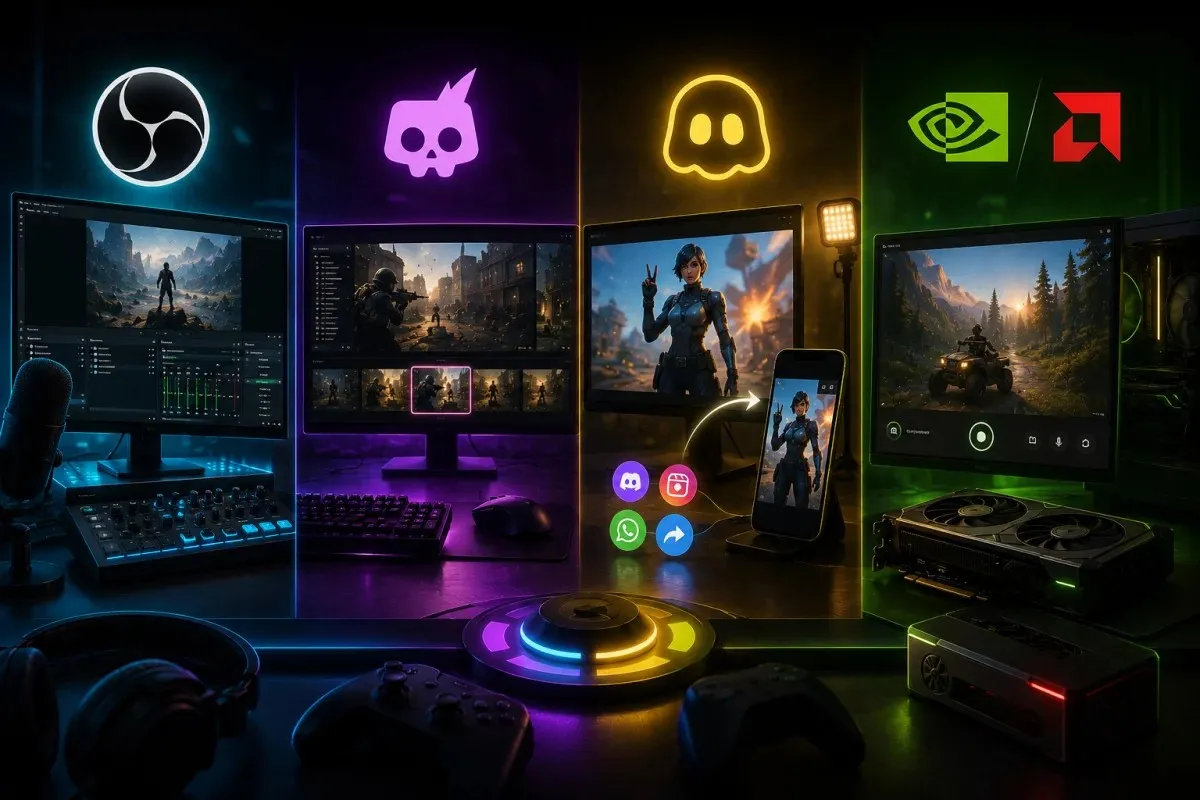
OBS remains the go-to choice for gamers who want complete control over their capture setup. It supports deep customization across scenes, sources, hotkeys, and encoding settings, making it the most flexible option on this list. The tradeoff is a steeper learning curve, since OBS wasn’t built specifically for quick clipping and requires more manual setup than GPU-native tools. For players willing to invest time into configuration, OBS offers a level of precision and quality control that few other tools can match.
Outplayed Best for Auto-Highlights
Outplayed is built around automatic highlight detection, making it one of the strongest options for players who don’t want to think about clipping while they play. It recognizes kills, wins, and other key moments across a wide range of popular games, saving clips automatically without requiring a hotkey. This makes Outplayed especially appealing for fast-paced titles where manual clipping is unreliable, though it offers less manual customization than OBS for players who want finer control.
Peeps Best for Social Sharing
Peeps focuses less on raw capture power and more on what happens after the clip is saved. It streamlines the process of editing, formatting, and sharing clips directly to social platforms, which makes it a strong choice for players building a highlight reel for an audience rather than just personal archiving. It won’t offer the same depth of manual settings as OBS, but for creators prioritizing speed from capture to post, that tradeoff is often worth it.
GeForce Experience / AMD ReLive Best Native/Built-In Option
For most players, GPU-native tools are the simplest and most reliable starting point. Since they’re built directly into your graphics drivers, they require no additional software, run efficiently through hardware encoding, and integrate smoothly with your system. They lack the automation of Outplayed and the customization of OBS, but for players who just want dependable, low-effort clipping, GeForce Experience and AMD ReLive are hard to beat.
Free vs Paid Clipping Software Is It Worth Upgrading?
Cost is often the deciding factor once players narrow down their options, and the good news is that some of the strongest clipping tools available are completely free. Still, paid versions exist for a reason, and knowing what you’re actually paying for helps you decide whether upgrading makes sense for how you play.
Best Free Clipping Software for Gaming
GPU-native tools like GeForce Experience and AMD ReLive are free by default, since they come bundled with your graphics drivers. OBS is also fully free, with no paywalled features, making it one of the most powerful no-cost options available for players willing to handle its setup. For most casual and even competitive players, these free tools cover everything needed for reliable clipping, background buffering, and hotkey customization, without ever requiring a subscription.
When Paid Tools Are Worth It (Editing, Cloud Storage, No Watermark)
Paid tiers, often found in tools like Outplayed and Peeps, typically unlock built-in editing features, cloud storage for your clip library, and removal of watermarks on exported footage. These additions matter most for players actively building a presence around their gameplay, such as streamers or creators sharing clips regularly, where saved editing time and clean, shareable footage add real value. For players clipping mainly for personal use or friend groups, the free tier of most tools is usually enough, and upgrading only becomes worthwhile once volume or presentation starts to matter.
How to Set Up Clipping Software (Step-by-Step)
Getting clipping software running smoothly usually takes just a few minutes, but small setup mistakes are often what lead to missed clips or unexpected performance issues later. Whether you’re using a GPU-native tool or a third-party app, the setup process generally follows the same core steps.
Setting Hotkeys for Instant Clips (AMD, Nvidia, Third-Party)
Start by opening your clipping software’s settings and locating the hotkey configuration menu. Most tools assign a default hotkey out of the box, but it’s worth changing it to something you can hit instinctively without looking at your keyboard, since fumbling for the wrong key often means missing the moment entirely. Avoid keys already used by your game’s controls, and test the hotkey in a low-pressure situation before relying on it mid-match. If you use multiple clipping tools, make sure their hotkeys don’t overlap, since conflicting shortcuts can cause one or both tools to fail silently.
Recommended Settings for Best Quality Without Lag
Once your hotkey is set, adjust your buffer length based on the game you play most, shorter for fast-paced shooters, slightly longer for games like Rocket League where you want the lead-up to a moment. For resolution and bitrate, 1080p with a moderate bitrate offers a strong balance between quality and performance for most setups. Enable hardware encoding if your software supports it, since this offloads processing from your CPU and significantly reduces the risk of FPS drops during gameplay.
Where Your Clips Are Saved & How to Export Them
By default, most clipping software saves files to a dedicated folder, often labeled by the software name or “Captures,” within your Videos directory. It’s worth checking this location early and changing it if needed, especially if you’re low on storage on your primary drive. When exporting, most tools let you trim, rename, or convert the file format before sharing, and doing this immediately after saving a clip makes it far easier to organize your library than trying to sort through dozens of unlabeled files later.
Frequently Asked Questions
Does clipping software affect FPS?
It can, but the impact depends heavily on how the software encodes video. Tools using software encoding rely on your CPU, which can compete with your game’s resources and cause noticeable drops. Tools using hardware encoding, like GeForce Experience or AMD ReLive, offload that work to a dedicated chip on your GPU, resulting in minimal to no performance impact for most players.
What’s the best free clipping software for gaming?
GeForce Experience and AMD ReLive are strong free options if you’re using a dedicated Nvidia or AMD graphics card, since they’re built directly into your drivers. OBS is also completely free and offers deep customization, though it requires more setup than native GPU tools.
Can I use clipping software on Mac?
Yes, though Mac has historically had fewer dedicated options compared to Windows. Look for tools built specifically for Apple Silicon rather than older Intel-based Macs, since performance and battery efficiency vary significantly between the two.
How do I fix Nvidia clipping software not working?
Most issues come down to outdated drivers, Instant Replay not being enabled in the overlay settings, or conflicts with another capture tool running at the same time. Updating GeForce Experience and restarting the overlay service resolves the majority of these problems.
What’s the best auto-clip software for competitive games?
Outplayed is a strong choice for automatic highlight detection, recognizing kills, wins, and other key moments without requiring a hotkey. It performs especially well in fast-paced shooters where manual clipping isn’t reliable.
Is OBS good for clipping, or just full recording?
OBS works well for both. While it’s often associated with full session recording, it can be configured for buffer-based clipping too, giving experienced users a highly customizable option, at the cost of a steeper setup process compared to native tools.