
Intel Smart Response Technology is a caching technology built into certain Intel chipsets that pairs a small solid-state drive with a traditional hard disk drive to speed up everyday computing tasks. Instead of replacing your hard drive entirely, SRT uses the SSD to store frequently accessed data, so your system boots faster and loads common programs with less delay. It was designed for a specific era of computing, when SSDs were expensive and hard drives still dominated storage.
In this guide, we cover everything you need to know about Intel Smart Response Technology, including how it works, what hardware and BIOS settings it requires, and how to set it up correctly. We also look at driver downloads, compatibility with Windows 10, and whether SRT still makes sense now that full SSDs and NVMe drives have become affordable. If you are troubleshooting an existing SRT setup or deciding whether to use it at all, this article will walk you through every step.
What Is Intel Smart Response Technology?
Intel Smart Response Technology, often shortened to SRT, is a caching feature introduced by Intel to bridge the gap between hard disk drives and solid-state drives. Rather than forcing users to choose one storage type over the other, SRT lets a small SSD act as a cache for a larger hard drive. The system automatically identifies the files and programs you use most often and stores copies of them on the faster SSD. This means your operating system can pull frequently used data from the SSD instead of the slower hard drive, cutting down load times without the cost of a full SSD upgrade.
SRT works quietly in the background once configured, requiring no manual input from the user during daily use. It monitors read and write patterns over time and adjusts what gets cached based on actual usage, so the system becomes more responsive the longer it runs. This made it a practical solution for budget-conscious builds in the early 2010s, when large capacity SSDs were still too expensive for most consumers. Still, hard drives alone felt sluggish for everyday tasks like booting Windows or launching applications.
How iSRT Caching Works (SSD + HDD Explained)
The mechanism behind Intel Smart Response Technology is fairly straightforward. A small SSD, typically between 16GB and 64GB, is paired with a larger traditional hard drive through Intel’s Rapid Storage Technology software. The hard drive remains the primary storage location for all your files, while the SSD functions purely as a cache layer sitting between the drive and the operating system. When you open a program or file for the first time, it loads from the hard drive at normal speed. If you access that same file again, Smart Response Technology recognizes the pattern and copies it to the SSD cache, so future requests are served much faster.
This caching happens at the block level rather than the file level, meaning Smart Response Technology does not care about file types or folder structures. It simply tracks which blocks of data are requested most frequently and prioritizes those for caching. Two modes are available: Enhanced mode, which writes data to both drives simultaneously for better data safety, and Maximized mode, which prioritizes speed by writing to the SSD first. Users choose between them depending on whether performance or data protection matters more.
SRT vs Traditional SSD Boot Drives
The key difference between Intel Smart Response Technology and simply installing a full SSD as a boot drive comes down to storage capacity versus consistent speed. A dedicated SSD boot drive delivers fast performance across your entire system every time, since all your files live on the SSD itself. SRT, by contrast, only speeds up the specific files and programs you use regularly. The first time you access something new, you still experience hard drive speeds, and the acceleration only kicks in after the system has learned your usage patterns.
For users with large media libraries or those who need more storage than a small SSD can offer, SRT once presented a reasonable middle ground. Today, with large-capacity SSDs and NVMe drives available at low prices, a full SSD boot drive is almost always the better choice for both speed and simplicity. SRT still has niche value for older systems being repurposed with hardware already on hand, but it is no longer the practical solution it was when Intel first introduced it.
Hardware & BIOS Requirements
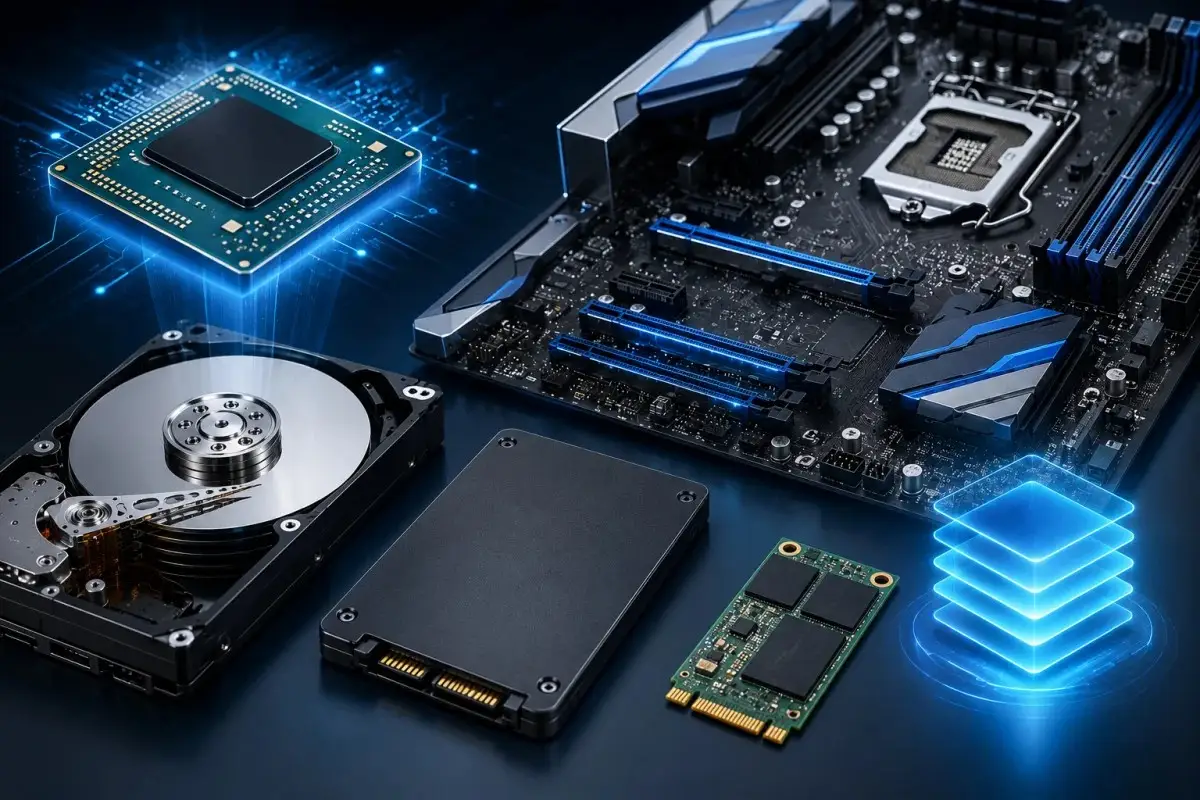
Intel Smart Response Technology only works on specific hardware combinations, so checking compatibility before attempting setup saves a lot of frustration. The feature requires a compatible Intel chipset, generally from the 6 series (Z68) onward through several generations of Intel motherboards, paired with a supported processor. Your motherboard’s BIOS or UEFI firmware must also support SRT and Intel Rapid Storage Technology, since the caching relationship between the SSD and hard drive is managed at this level before the operating system even loads. Older or budget chipsets often lack this support entirely, so confirming your exact chipset model against Intel’s compatibility list is a necessary first step.
Beyond the chipset, you need two physical drives: a traditional hard disk drive for bulk storage and a small SSD or mSATA drive to serve as the cache. Motherboards vary in how they expose the required SATA or mSATA connections, so checking your board’s manual for SRT-specific ports is worthwhile before purchasing hardware.
Compatible Chipsets and Motherboards
Intel first introduced Smart Response Technology with the Z68 chipset, and it carried through later generations including Z77, Z87, Z97, and select others in the same performance tier. Budget chipsets in the H and B series typically do not support SRT, even when paired with a compatible processor, since the feature depends on firmware-level support built into the chipset itself. Before assuming your system qualifies, check your motherboard manufacturer’s specification page or product manual, since chipset model numbers are usually printed there directly.
It is also worth confirming that your BIOS or UEFI version is up to date, since manufacturers sometimes add or improve SRT support through firmware updates after a board’s initial release. Running an outdated BIOS can cause the SRT option to be missing entirely, even on a chipset that technically supports it, so updating firmware first can resolve confusion during setup.
mSATA and SSD Cache Size Requirements
Intel sets specific limits on how much SSD storage can be used for caching under Smart Response Technology, with a maximum cache size of 64GB regardless of how large the physical SSD is. If you install a larger SSD, the remaining space beyond 64GB either goes unused for caching purposes or must be partitioned separately for regular storage. Most users pair SRT with drives in the 16GB to 64GB range specifically because larger cache sizes offer no additional benefit under Intel’s implementation.
Many motherboards from this era include a dedicated mSATA slot specifically intended for SRT caching drives, separate from standard SATA ports used for primary storage. If your board lacks an mSATA slot, a standard 2.5-inch SSD connected through SATA can serve the same purpose, provided you have an available port and your BIOS recognizes it correctly as a caching device rather than a standard drive.
SATA Mode: AHCI vs. RST/RAID for SRT
One of the most common points of confusion with Intel Smart Response Technology involves the SATA operation mode set in the BIOS. SRT requires the SATA controller to be configured in RAID mode rather than standard AHCI mode, even though you are not actually building a RAID array. This is because SRT relies on the same Intel Rapid Storage Technology drivers and firmware framework that RAID configurations use. Hence, the controller needs to operate under that mode for the caching relationship to be recognized. Attempting to enable SRT while the SATA mode is set to AHCI will simply make the option unavailable in the Rapid Storage Technology software.
Switching SATA modes after Windows is already installed can cause boot failures if not done carefully, since the operating system loads different drivers depending on which mode was active during installation. For this reason, it is best to decide on RAID mode before installing Windows whenever possible, or to follow a proper driver transition process if switching on an existing installation.
Intel Smart Response Technology vs AHCI: Which to Choose
The choice between RAID mode for SRT and standard AHCI mode depends entirely on whether you plan to use caching at all. AHCI is simpler, universally supported, and sufficient for any system using a single drive or a full SSD without caching. It also avoids the added complexity of RAID drivers and firmware dependencies. If your system already runs well on a full SSD, there is little reason to switch to RAID mode just to enable a feature you do not need.
RAID mode becomes necessary only when you specifically want to use Intel Smart Response Technology with a hard drive and SSD combination. Choosing RAID mode without actually configuring SRT or a RAID array offers no benefit and adds unnecessary complexity to your storage setup. For most modern builds using a single NVMe or SATA SSD, AHCI remains the more practical and reliable choice.
How to Check or Change SATA Operation Mode
To check your current SATA mode for Smart Response Technology, restart your computer and enter the BIOS or UEFI setup menu, usually by pressing Delete or F2 during startup. Look for a section labeled SATA Configuration or Storage Options, where the current mode will be listed as either AHCI, IDE, or RAID. The exact menu location varies by motherboard manufacturer, so consulting your board’s manual can help if the setting is not immediately visible.
Changing this setting after Windows is already installed requires extra care, since an abrupt switch can prevent the system from booting properly. Windows typically needs a registry change or a driver adjustment before the switch to load the correct storage drivers on the next restart, especially when Smart Response Technology is already configured. Making a full backup before attempting this change is strongly recommended, since an incorrect switch can leave the system unable to boot without a repair.
How to Set Up Intel Smart Response Technology
Setting up Intel Smart Response Technology involves a few distinct stages, starting with the BIOS configuration covered earlier and moving into software setup within Windows. Before beginning, confirm that your SATA mode is already set to RAID, your SSD and hard drive are both properly connected, and you have downloaded the correct version of Intel Rapid Storage Technology software for your system. Attempting to configure SRT without completing these prerequisites first will result in the caching option being greyed out or missing entirely within the software interface.
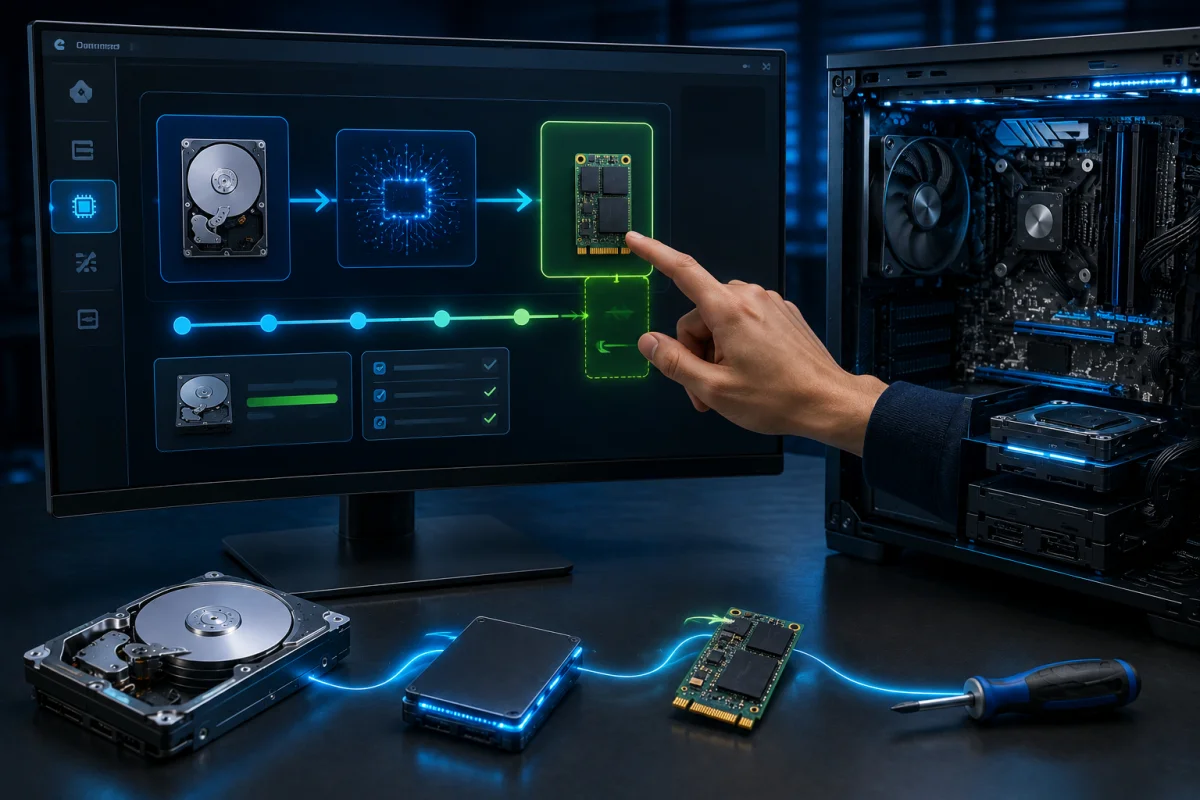
Once the prerequisites are confirmed, the actual setup process happens almost entirely within the Intel Rapid Storage Technology application rather than in the BIOS. The software detects both drives automatically, provided the SATA mode and drivers are correctly configured, and presents a straightforward interface for creating the cache relationship between them. The process typically takes only a few minutes. However, the initial caching period afterward, where the system learns your usage patterns, can take several days of normal use before performance improvements become noticeable.
Step-by-Step Configuration in Intel RST Software
Open the Intel Rapid Storage Technology software after installation and look for the Performance or Acceleration tab, where the SRT configuration options are located. Select the option to enable acceleration, then choose your hard drive as the drive to be accelerated and your SSD as the caching drive. The software will ask you to choose between Maximized mode and Enhanced mode, so select whichever aligns with your priority between speed and data safety as discussed earlier.
After confirming your selections, the software begins the caching process automatically, and no restart is typically required for this initial setup. It is worth checking back in the software periodically over the following days to confirm the cache is populating correctly and that no errors have appeared. If the acceleration option fails to complete or shows an error, double-check that your SATA mode and drivers are correctly matched before troubleshooting further.
Assigning an mSATA or SSD as Cache
When assigning your caching drive within the Rapid Storage Technology software, the interface will list all available drives detected by the system, so it is important to select the correct SSD or mSATA drive rather than accidentally selecting your primary hard drive. If your SSD is larger than 64GB, the software will typically prompt you to partition it, since only 64GB can be used for caching under Intel’s implementation, with any remaining space available for standard storage use.
Once assigned, the caching drive becomes dedicated to that function and will not appear as a separate drive letter in Windows File Explorer, since it operates transparently in the background. If you ever need to remove the caching relationship, this must be done through the Rapid Storage Technology software itself rather than through Windows Disk Management, to avoid leaving the system in an inconsistent state.
Downloads & Drivers
Finding the correct software for Intel Smart Response Technology can be confusing, since Intel has folded SRT functionality into its broader Rapid Storage Technology driver package rather than offering it as a standalone download. This means you do not search for SRT specifically, but instead look for the appropriate version of Intel Rapid Storage Technology that matches your chipset generation and operating system. Installing the wrong version, or one not matched to your specific motherboard chipset, can result in missing acceleration options or the software failing to detect your drives correctly.
Before downloading anything, identify your exact chipset model and current operating system version, since Intel maintains multiple driver branches depending on hardware generation. Motherboard manufacturers also often provide their own customized versions of the Rapid Storage Technology software, tailored and tested for their specific boards. In many cases, downloading directly from your motherboard manufacturer’s support page produces more reliable results than pulling a generic version from Intel’s own site.
Where to Download Intel SRT / RST Software
The Intel Rapid Storage Technology software can be found on Intel’s official download center, where searching by your chipset model will surface the correct driver package. Alternatively, visiting your motherboard manufacturer’s support page and searching by your exact board model often provides a version pre-tested for that hardware, along with any manufacturer-specific adjustments. Always verify the file is sourced from an official Intel or manufacturer domain before downloading, since third-party sites sometimes bundle unrelated software with driver packages.
Pay close attention to version numbers, since newer releases of Rapid Storage Technology sometimes drop support for older chipset generations that originally shipped with SRT. If the newest version does not detect your SRT-capable hardware correctly, checking the release notes for an older, chipset-matched version can resolve the issue.
Driver Compatibility Including Windows 10
Intel officially supported Smart Response Technology through Windows 7 and Windows 8, and later extended compatible drivers to Windows 10 for chipsets that originally shipped with SRT capability. However, official support has not continued into more recent Windows releases, so users running Windows 10 today may need to rely on older driver packages that still function correctly despite no longer receiving updates. Compatibility can vary depending on your specific chipset generation and the exact Windows 10 build installed.
Some users report needing to install drivers using compatibility mode or through a manual driver installation process, since Windows 10 does not always recognize older Rapid Storage Technology packages automatically through standard installation. If you encounter installation errors, checking community forums for your specific chipset and Windows 10 combination often surfaces a working driver version, since this is a common issue among users still running SRT on legacy hardware.
Is Intel Smart Response Technology Still Worth It? (Review)
Whether Intel Smart Response Technology is worth setting up today depends heavily on the hardware already available to you. If you are working with an older system that has a compatible chipset, a spare small SSD, and a hard drive already installed, SRT can still offer a noticeable performance boost without spending any additional money. Boot times and program load times improve meaningfully compared to running on a hard drive alone, even if the improvement does not match what a full SSD delivers. For repurposing older machines or extending the useful life of existing hardware, SRT remains a reasonable option.
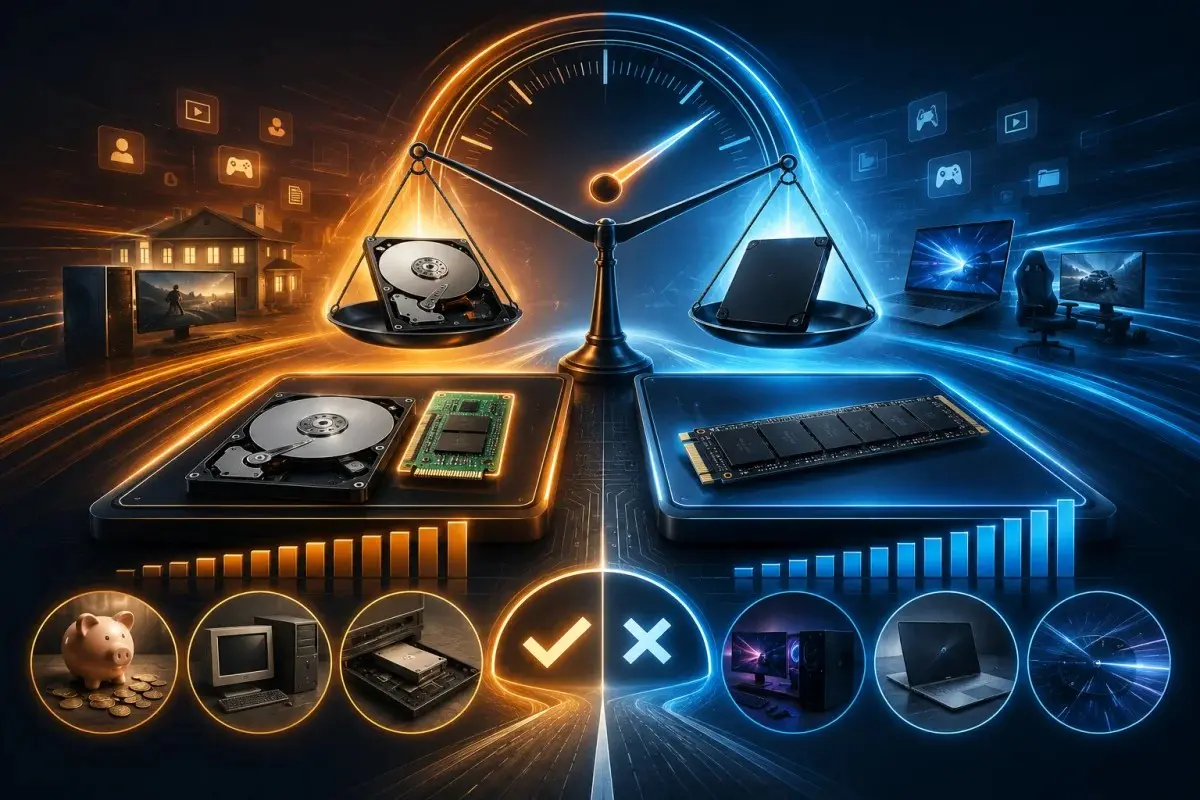
For anyone building a new system or with the budget to purchase new storage, however, SRT no longer makes practical sense. The complexity of configuring RAID mode, managing drivers, and dealing with a feature that is no longer officially supported on current Windows versions outweighs the benefits when large-capacity SSDs are so affordable. A direct SSD or NVMe drive delivers faster and more consistent performance across your entire system, not just the specific files SRT chooses to cache.
Performance Benchmarks: SRT vs Full SSD
Benchmark comparisons between Smart Response Technology systems and full SSD installations consistently show a clear gap in real-world performance. While SRT reduces boot times and speeds up frequently accessed programs, a full SSD delivers fast read and write speeds across the entire drive, including files being accessed for the first time. Smart Response Technology’s caching mechanism only benefits data that has already been identified as frequently used, meaning any new file or rarely accessed program still loads at hard drive speeds.
In practical terms, users moving from a hard drive alone to a Smart Response Technology setup often report boot time improvements and faster loading for commonly used applications, bringing the experience closer to an SSD without matching it exactly. However, when compared directly against a full SSD or NVMe drive, SRT systems consistently show slower file transfer speeds and less consistent performance for tasks involving large or infrequently accessed files, confirming that Smart Response Technology narrows the gap rather than closing it entirely.
When SRT Makes Sense in 2026 and When It Doesn’t
Intel Smart Response Technology makes sense in 2026 primarily for users maintaining or repurposing older hardware that already includes a compatible chipset and spare drives. If you already own the necessary components and simply want to improve performance on an existing system without new purchases, configuring SRT remains a valid and low-cost option. It also suits users running systems for basic tasks where occasional slower load times for uncached files are not a significant concern.
For anyone purchasing new hardware, building a new system, or seeking consistent performance across all applications and files, SRT does not make sense. Modern SSD and NVMe prices have dropped enough that using a full SSD instead of a hard drive and cache combination provides better performance with less setup complexity. In these cases, skipping SRT entirely in favor of a proper SSD installation is the more practical and future-proof choice.
Frequently Asked Questions
What Is ISRT vs SRT? Is There a Difference?
ISRT and SRT refer to the same feature, with ISRT simply being shorthand for Intel Smart Response Technology rather than a separate or updated version. Some documentation, forum discussions, and driver packages use one term or the other interchangeably, which can confuse users searching for setup guides or troubleshooting help. If you come across either term while researching, you can treat them as identical for all practical purposes, since there is no functional difference between the two names.
Does Windows 10 or 11 Still Support Intel SRT?
Windows 10 can support Intel Smart Response Technology on compatible chipsets. However, official Intel support for the feature ended before Windows 10 was released, so users often rely on older driver packages that still work. Windows 11 support is far less reliable, since the operating system’s stricter hardware requirements and driver signing rules make older Rapid Storage Technology packages more difficult to install successfully. Users attempting SRT on Windows 11 should expect a higher chance of compatibility issues compared to Windows 10.
Can I Use SRT Without an mSATA Drive?
Yes, Intel Smart Response Technology does not strictly require an mSATA drive, since a standard 2.5-inch SATA SSD can serve the same caching function as long as your motherboard has an available SATA port and your BIOS correctly recognizes it. The mSATA slot found on many SRT-era motherboards was simply a convenient dedicated connection for this purpose, not a hardware requirement. As long as your chipset and BIOS support SRT, any properly sized SSD connected through a supported port can be used as the caching drive.
Is Intel Smart Response Technology Worth It With Modern NVMe SSDs?
Using Intel Smart Response Technology alongside a modern NVMe SSD generally does not make sense, since NVMe drives already deliver the fast, consistent performance that SRT was originally designed to approximate through caching. Pairing an NVMe drive as a cache for a hard drive would technically work on compatible hardware, but the more practical approach is simply using the NVMe drive as your primary boot drive instead. SRT was built for an era of expensive SSD storage, a limitation that modern NVMe pricing has largely eliminated.



















:+The+Complete+Guide+to+Setup,+Requirements+&+Performance)
:+The+Complete+Guide+to+Setup,+Requirements+&+Performance&description=&image=https://flywly.com/wp-content/uploads/2026/07/smart-response-technology-1024x683.webp)